



¶ Welcome & Menu Bar Introduction
Welcome back to the Mac Power Users. I'm David Sparks and joined again by Mr. Steven Roblis. How are you today, Stephen? I'm doing really well, David. How you doing? I am doing great. Uh had great feedback on your first episode. Uh thanks everybody who sounded off in the community and YouTube, we got the highest YouTube count we ever got with a Mac Power Users episode.
Thanks everybody for being so kind too in the forums and in the comments. And it's a real pleasure to be here and excited to now nerd out. We're now we can start nerding out about stuff. Yeah, yeah. Now we know we know about Steven. Now we can get nerdy with Steven. And uh but but you're right, um the It's something you're gonna learn, Stephen, is the Mac Power User audience is the greatest audience in all of Podcast a Thon. Uh
Uh, they're smart and they're f friendly and they're fr and they're willing to give us all a chance to try stuff out. So uh I have no surprise that everybody has been so warm and accepting you and uh And I've got a bunch of emails from people saying, hey Sparks, good job on getting Steven Robles on the show. You you chose wisely. And I so I just wanted to tell you that. Um so lots of nice features.
Well, thank you very much. Super fun. All right. Uh this week we want to talk about menu bars. This kind of grew out of one of our warm up calls and recordings we did at some point when you and I were kind of going through the process of getting to know each other. I shared my screen. And at that point I'm gonna like excuse myself here. I have to I have to I'm gonna lead the excuse here.
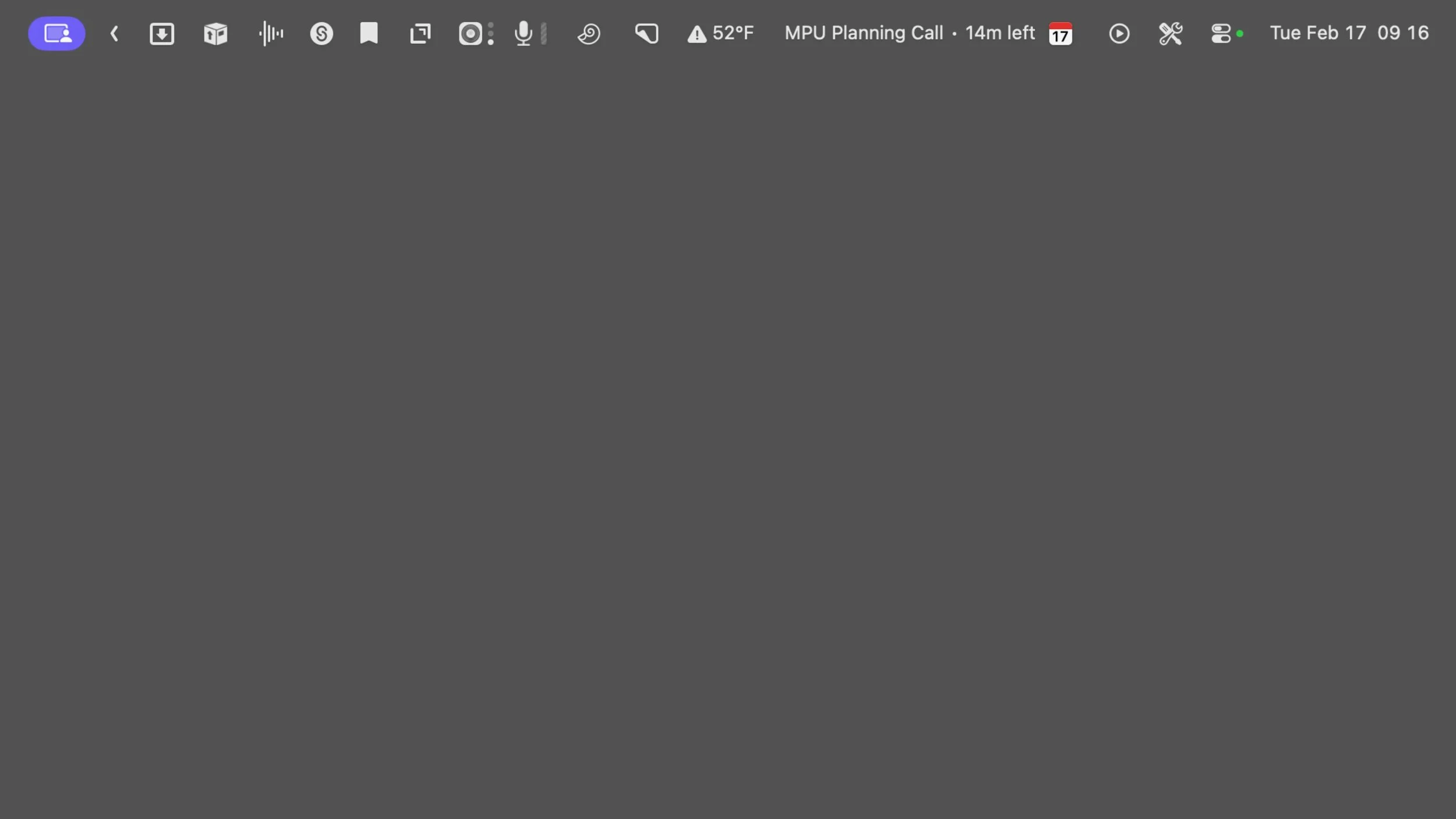
Uh I I had been in the process of working with um bartender and I was trying to figure out what I was gonna do for menu bar management, but at that point basically I had menu bar items across my entire Top of my pro display. And and Steven saw my screen's like.
What is going on in your menu bar? And as we spoke last week, Pro Display XDR is a big screen. And so I said I saw multiple calendar menu bar items. I said, David, what's happening here? Yeah, I had two of them up at that time. I had them all stretched across and he said it the way he said it.
¶ Contrasting Menu Bar Philosophies
It was, I don't know, I think it was a little bit of outrage and a little bit like laughter. And I'm like, Okay, this is a show. We're gonna talk about our menu bars. Because we haven't done OMAC power users for years and mine has changed a lot. Never even seen yours, Steven. So Uh it's time, gang, to strap in and talk about menu bars. Uh d before we get started though, uh in the more power user segment, we're gonna be talking
About uh a little experiment I'm doing. Uh during the show last week, Steven talked about his clicky keyboard, and I talked about how I can never seem to get him to work. So I decided this week to really throw my weight into an experiment to make a clicky keyboard work. So I I I 3D printed something. I changed a bunch of macros. We're gonna get into that deep in the uh the after show today. More power users. So for you subscribers, stick around. We've got a lot to talk about.
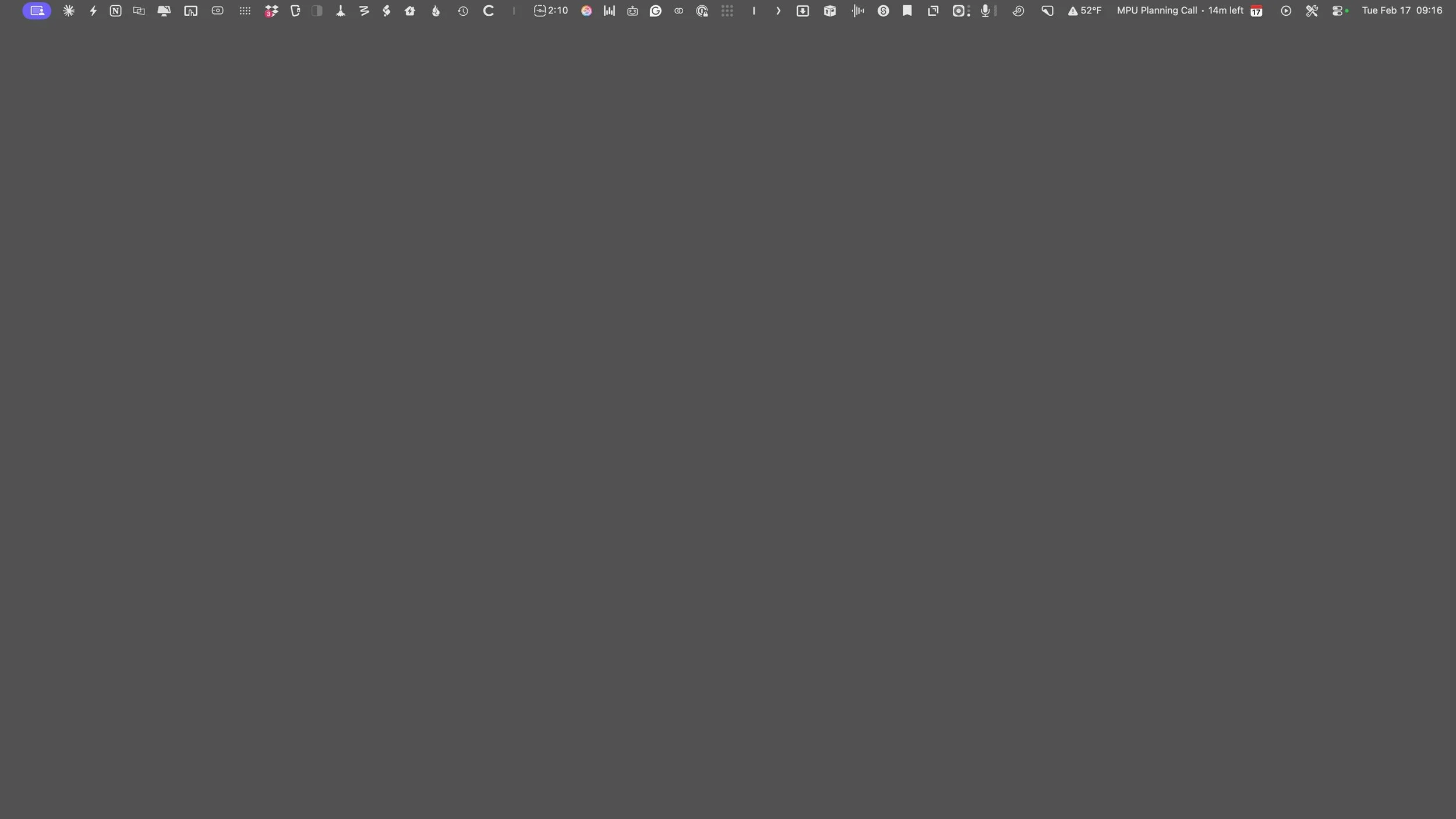
But let's start, Stephen, with the menu process. Let's do it. I'm excited to show them off. Uh I'm gonna be sharing my screen and then there'll be chapter I'll work throughout as well. But Can I show your current menu bar status? The extended version? Yeah, the extended version. It's still pretty long. This is this is Lord of the Rings extended version uh for David.
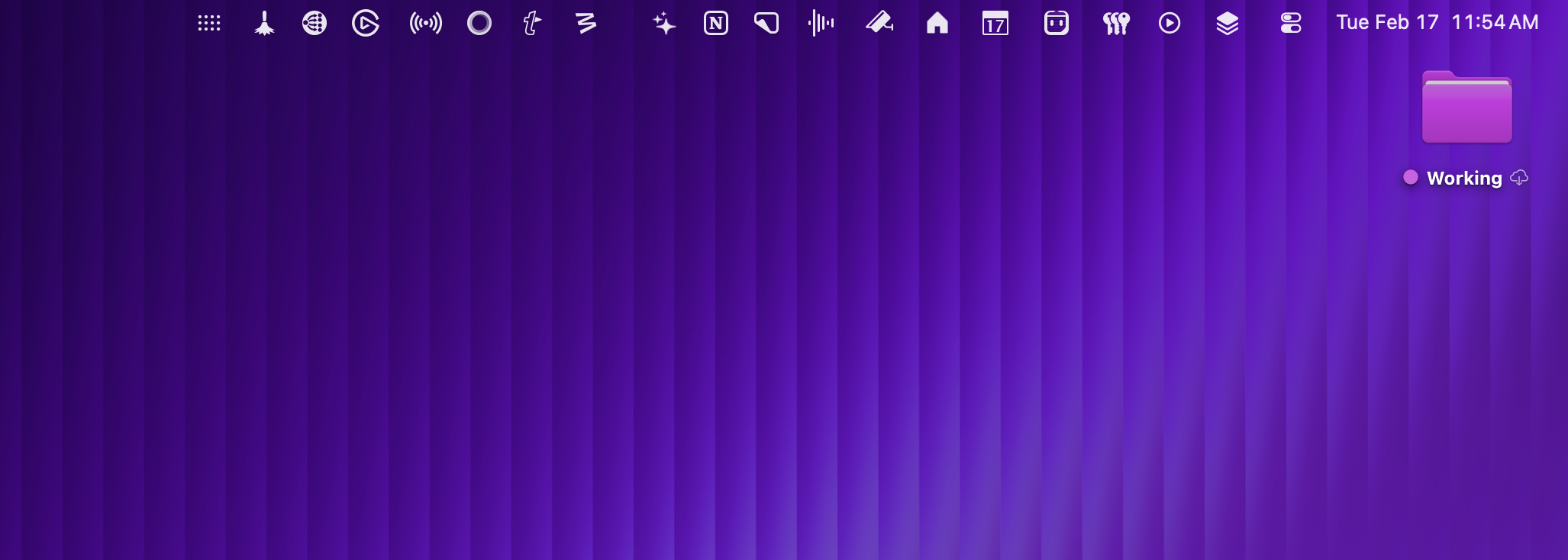
Uh the chapter hour work, it will be pretty much unseeable, uh, because it will be so you know, menu bars by nature are extremely long and thin. Yeah. There's a lot of icons there. And so that's David's full menu bar, the smaller menu bar, which we're gonna get to the apps that we use for that. I tested four.
Uh just so you know, David, you sent me on a a complete spiral this past week trying different apps. Excellent. Excellent. This is my current one. This is expanded because now I do use an app to kind of expand and collapse. So we'll get into all of that. But Yeah, David David wins on the uh amount. Of menu bar items. I love that my shortened version might be longer than your expanded version. 100%. Yes. 100%. It wins in all ways.
Yeah, I am uh I'm a menu bar guy. I don't know what to say. In fact, let's start there. What is our menu bar philosophy? Yeah, so I've always been a minimalist. in many areas and the menu bar has been one of them. If I don't use something regularly, I don't keep it in the menu bar. I don't want to see it. If I'm not clicking it, I don't want it there. And there are some apps that I might use
periodically like the Elgato app. I have a couple Elgato key light airs and there's a menu bar app that allows you to control it. I'll use that once a year. And, but I'll quit it and I'll get it out of the menu bar if I ever restart my Mac and it just shows up automatically. So I try to be very minimalist. Very choosy, even in this past week, as I've been testing apps that you have listed. I've installed, tried it, and uninstalled and removed it the whole cycle.
just in the last week. So I try to be very minimal. How about you? Yeah. I I am not so minimal. I I'll tell you there there's definitely menu bar bloat for me'cause I'm always installing new apps and they're always putting stuff up there.
Um, like the when you had first looked at mine, you saw two calendars. That's because I'm I've been running BusyCal for their linear calendar view. And I just hadn't bothered to go in and turn off their menu bar. It's on by default. And the um that's always a thing. But I also do like and aggressively use it throughout the day. And I'd like to consider myself a keyboard guy, but when I think about my menu bar, I actually use the mouse a lot going up to that menu bar.
during time. Uh when I'm in production on something, like when I make a field guide or a a video that's going to be public. It's very minimal. You know, I don't want things up there. In fact, there's a whole thing. I run a a script I wrote that uh changes the clock because the, you know, the native clock on the menu bar shows the minutes.
And the little blinking secondhand. I think I can turn the blinking off, but it doesn't bother me. But the uh when I record videos, I don't want it up there because I may record a three minute video, but I may spend an hour and a half recording it because recording is hard and I don't want you to see the the clock switch, so I switch it to analog and
Uh i you used to be able to just turn the clock off, but with one of the updates in the last few years, you can't. The clock is just permanently there. So Uh I have a little script I run that switches it. So the menu bar not only changes in size, it transforms when I'm in production. But when I'm working, I figure, heck, I'm not gonna use that space up there. I might as well have this stuff there. And uh
That's a funny just as a different approach being on YouTube and posting so much publicly there. I like having the time there because if someone does notice a forty minute gap They'll ask why and that will drive engagement. And you know, just people asking questions and
¶ Information, Minimalism & The Notch Problem
So also sometimes just if people are curious, you know, when did he record this? You know, I do some timely type videos, like I talked about I was twenty six dot four yesterday. And so if people want to see that I recorded it Monday at three PM, I'm like, yeah. Let's have it up there. Yeah, that makes sense. Uh but it is for the stuff I do, it's just takes
It it's a it's a process, I'd say. And sometimes you hit a roadblock and like suddenly you watch the c if you notice the clock it jumps like forty five minutes between one second in the next and it's like, oh, I hate that. Well and it's also maybe we would talk about like our philosophy of work though, but anything that might distract you while you're doing that recording, like, you know, if that's distracting you or me, like definitely remove it. And that's I think one of the reasons why I
try to keep the menu bar pretty tame. Yeah. But now in macOS twenty six, a lot of things change depending on what you're doing, which we'll get to later. Yeah. And it's like and it's funny for me because the stuff I record for like public YouTube or or um field guides. I always make it very minimal. And but when I do stuff for the Max Market Labs, I kinda just let it rip and
You're right, it always it does drive questions. I'll I'll release a video about some app and somebody will say, What's the third icon from the left? You know, they'll write me an email because they just want to know what that is. Has nothing to do with the video, but they noticed it and they're curious. Yes. So I'm not as minimal as you are when it comes to menu bars. Um the um
But you know, um what about the idea of minimalism versus information? Like you can get data out of your menu bar in addition to working without And there's a several that I use that stay in the menu bar, like Fantastical, where I use it exclusively pretty much in the menu bar. I don't think I ever open the full app.
And so but Fantastic How is nice where I don't I only see the date number. I have it programmed, which you can change this setting, but I have it where it just shows the number date and I click it to see the drop down. So I like that, but Audio Hijack, which I'm actually not liking right now, not Audio Hijack, but the app that I'm using to do Shrink my menu bar I realized has hidden my audio hijacked. Audio levels.
Which I normally have in the menu bar. And that is a piece of information that is critical when I'm recording, because I want to make sure it's getting volume uh from my input. And so while you tell me your approach, I'm going to try and figure out how to get those audio bars back because that's that's just bothering me. I've just noticed.
Yeah, I I agree. I like the information element of it. Um, and also I like it as a target. Like there's a couple menu bar apps I'm gonna talk about that allow me to do file management to the menu bar, and I find those absolutely essential.
Yeah, and I'd literally just figured out how to put those bars back, so now I'm happy. We can we can continue now. Okay, that's good. That's good. Uh uh but I want to talk about Fantastic Cow for a second because I um love that it gives me my upcoming appointment and how far away it is. And so you hide that you just show the icon
Well it helps that I never leave the house, you know what I mean? It's uh there you go. There you go. Like you can use your Apple Watch. There's a lot of ways to get yourself what's going on. But as I'm sitting here at my Mac, um multiple times a day I will glance up at Because I I also do a lot of block scheduling and so I'll be like, okay.
I'm gonna write the newsletter today at 2 p.m. And then I look up at my menu bar and says, Oh, in a half hour you're supposed to write the newsletter. Well, get finish what you're doing so you get there. And that helps me get through the day. And that's something I've I've always been on the fence about doing the time blocking in the calendar. It's something I I don't do, so I only in my Fantastic House see actual events. So if
If I open Fantastica right now in the menu bar, I see MPU. Like that's literally all I have for today. Now I did other things and I've not worked out do I want to have an event for like make an Instagram reel? I'm not sure, but but that's interesting. Yeah, see I wouldn't do one for that that detailed of a thing. But maybe you'll just say, you know, I'm gonna do a marketing block and I'll make some Instagram reels and I'll do the blah blah blah thing and then
make that a block. But I'm a weirdo with the way I I calendar for sure. But you get a lot done. I mean I see all your emails and they just keep coming. So you're making content. You make you make a lot of content. Like it's impressive. So Yeah. Well I used to be a lawyer. So now I I I have an energy level that I have to keep up with.
Um but the uh but yeah, so the calendar and the uh showing the the next event is is useful to me, but that's nice. You know, we we'll have different approaches to it. That's kind of the idea. Uh you asked a question in the outline, how many icons is too many? Steven, how many icons in your menu bar is too many? So on my MacBook Air, which is the smaller one, the thirteen or fourteen inch one, if it hits the notch, it's too much.
And I have not used an app for managing the menu bar icons yet on the MacBook Air. So I'm very aggressive at not allowing apps in there. Like Claude and ChatGPT wanna put icons in the menu bar and I don't need that. Like I'm gonna open the Claude app or the ChatGPT app if I'm gonna do something. So I removed them. On my studio display, it's a very arbitrary feeling. But I'll say it's about one third. Like I don't want my icons hitting
fifty percent over on the menu bar or even forty percent. So a third is like the max feeling'cause otherwise it just feels crowded to personally. Yeah. But do you have any upper limit, uh David? Uh I do, actually. And and on the laptop we're in agreement. Uh I am personally frustrated with Apple with the way they've managed that notch. Uh menu bar items can go under the notch without you knowing it. And that is ridiculous. Why?
Why didn't somebody at Apple figure out how to just move it to the other side of the notch other than hide it under something that the user can't see? It feels feels bush league to me and and it's been going on for a couple of years and that's the reason why there's a bunch of apps there that make a second level menu bar. And and there's some apps I don't know if you've used any, but will try to actually expand the notch to give it more useful
as in like drop zones or information, basically like make it a dynamic island from iPhone. I don't prefer those. Have you ever tried any of those? No, I'm not a fan of that either. Yeah. But because of the situation with the notch, I too agree that you should do your best to keep your menu bar on the right side of the notch entirely.
Because and and and for instance, Fantastical on my laptop does not show the next appointment because there's just not enough room and like you just have to like pare down. And so I I'm actually pretty conservative on the laptop because I just don't want to go looking for something and and not be there because it's under uh a section of the screen that's not visible to the user. I just can't get over that. Anyway. Well, and especially when you you there's some utilities that
you have to interact with it in the menu bar to either quit it or access the settings. Yes. Or it's just not really visible in the doc, especially if they have an option to hide the doc icon, something like Fantastic L. And so you might do a command space start typing an app and click return to open it, but you can't see it because it's hidden under the knot. Especially like if and if you get too close to the notch and you install a new app.
And you want to try it and you're like, where's the app? And I have I don't know if you've done this. I found myself going to activity monitor to just see is it even in memory? Oh yeah, it is. Right. Oh, it must be under the damn notch. So
¶ Menu Bar Management Apps Overview
So then you have you know, it's just like it's nuts. So so I'm pretty conservative on the laptop. On the the uh desktop though. I'm ready to let it rip. I I don't want to go so far that I need something that's under a menu item. from an app. Right. But the way I look at it, I paid for all these pixels. I might as well use them. Um so so I go back and forth on whether I even need like a m a monitoring app or a a management app for them.
You just I could just let them all be up there because then it's one less click for me to get to them. Uh but I I go back and forth and and we're going to talk in a minute about my menu bar management app and uh because that's a whole thing with menu bars, you've got to figure out how you're gonna manage.
Yeah, and I'm curious to he you're curious to hear the the bartender saga you're gonna talk about'cause I was tangentially aware of it, but I I never got into bartender specifically, but I've now tried Hidden Bar, Barbie, and Booho Bar in the last week. And so I got lots of thoughts there.
Yeah, I I listed a bunch of them. We got links in the show notes. There's a bunch of these apps. Bartender was the first, it wasn't the first menu bar management app, but it was the first really good one. And Uh
They they added a bunch of features over time. Like for screencasting, I could have different setups, or I could have this is the one that I menu bar I have when I'm recording versus this is the one that I have when I'm just doing work. And of course the recording one is much more conservative.
So that's really cool. And they I think they were the first app to make a second row, which which addressed the notch problem for a lot of people. And just so many features. Like he had the ability to search it. And it was kind of like the go-to app for a long time.
And if you're a set app subscriber, you've already got it for free. You can download it. It's really nice. But then it got weird for a minute because they sold the company, but they didn't really talk about it. So it got new ownership. And then they put some monitoring software in it, which was, I think, just for bug reporting. It wasn't anything nefarious.
But everybody got, you know, their hackles up over that and then everybody kind of just said, Well, bartender's no good anymore. I don't think that's true. I think it's a g a good app still. I I really like it. But A lot of people were looking for alternatives. So in that space, a bunch of alternatives popped up.
And uh so my point is don't be angry at bartender. The companies get sold all the time. The new developer seems like they're actively developing and supporting it. They just put it I think it's version six came out recently. So if you like bartender, use bartender. Don't feel bad. Uh but there's other apps out there now too.
Yeah, and that's what I've been experimenting with this week. And so are are you ready to reveal what you do you use bartender now or do you use a different one? No, I I've been on a journey, but uh the one of the big Um the one of the big ones that is a contender with bartender is ice. Did you play with that one? That's the only one I didn't. Okay. Well let me talk about that one for a minute.
Yeah, so ICE is uh uh open source, although I think I paid for it this week. I think I paid like ten dollars for it. Maybe they've got it on a model now where you can pay for it. Um but it's very similar to bartender. Um It it has um show on hover, it has hidden apps, it has a second row. Uh it's nice because it's open source, so it's
I think there's a lot more, you know, knowledge in the community of what they're doing with the app. People are still feeling stung by that bartender cell where again I feel like that was a little overdramatized. Uh but ICE is a if you're looking for an alternative bartender with the bartender-like features, I think ICE is the app you would want to check out.
Okay, well I was I was tempted by ICE, but I went instead to hidden bar first, one because it's free, two because it's actually in the app store. And as we may talk about, one of the things about menu bar apps is it does require things like special permissions in the privacy and security and the accessibility settings of your Mac. So the fact that it was in the app store, I felt more comfortable, like, let's just try it and see.
So being free, letting you try it, it is very simple, but it does exactly what you would hope. It'll hide your menu bar icons and then it will expand them when you click. And that's pretty much it. You know, you move the icons on either side of the little bar that's in the menu bar, uh whether you want it hidden or not. And it worked fine. There were some other features in the alternatives that I tried later that I found I actually prefer, but hidden bar is a great option.
Well that's where I am currently, to tell you to share my journey. I uh so I use bartender, I tried ice, I'm like, yeah, that's nice, but I really don't need that many features. And I really like the simplicity of hidden bar. So it's got a little um lesser than symbol, basically. You click on that and it gives you the expanded version. You can hold down the command key and drag apps freely from left to right across that divide.
And that's how you shrink shrink it. So if I want to record, I can just drag a few over and I'm good. It's not quite as, you know, easy in terms of daily use as something like bartender or ice.
But it's really easy in use of uh just moving things around. It you don't have to go into a bunch of settings and play with Gotcha. And just the overall simplicity of it really appealed to me. The fact that it's in the app store. And I just decided I was gonna stick with hidden bar because I think that's all I need. Like I said, there's a part of me that doesn't want to have any of these on my on my desktop computer. I want to just go full menu bar all the way up.
And that has been my consternation is I always just wanted the full menu bar always visible and then I'll be aggressive at taking them out. But I have tried the next one. two in the last week and actually bought both because I was just like, let me just go all the way here. Sure. Yeah. Welcome to the Mac Power users. Thankfully these aren't too expensive these apps and there's no subscriptions actually, which is nice.
But Barbie is also in the app store, but I should also mention it does require installing a helper application after you download it from the Mac App Store. So I thought this was going to be one of my favorites just being all app store, but it's not really it it requires an a helper app. But it has sections for show always. hidden and then always hidden.
And that's the part that really got me. Uh this is a feature that Hidden Bar didn't have where you can just put some menu bar items just in the always hidden section. And now you might ask, Why don't you just take it out of the menu bar? But like I told earlier, the Elgato apps are something I use once a year. I don't even want to see it when I expand my menu bar.
But I do want it just there if I ever need it, that once a year. And so there that always hidden section is actually interesting to me, and I'm going to continue to try it out. I also like that Barbie and Buho Bar, which we'll talk about next. They let you customize the little symbol in the menu bar where the hidden icons are. So a hidden bar is like I think it's a bar or maybe an arrow.
And Barbie lets it be like three dots. It can be a plus star type icon, which is what I did, which kind of looks like Gemini, but it's fine. Um, and so that's how I kind of like some of those options. It's a$13 lifetime purchase. Which is pretty good. You know, fourteen bucks and you can own it for life. And so I think I've stuck with Barbie after trying the most of them this week, but uh it's a good option.
Yeah, and you'll get that feature also with uh bartender and ice, where you can change the little icon uh to expand it. Okay. And then the last one I tried was was Booho Bar. This one was interesting. It's sixteen dollars, a little more expensive for three Mac. or$8 one-time purchase for one Mac. So a little bit of difference of like licensing there. It has a lot of the same features as Barbie. You can do the floating menu bar extended or just keep it in the menu bar when you expand the app.
You can uh you know, customize it how you want with a little symbol on what to expand. This one, it's not in the App Store. You have to download it directly from them and I just I I don't know why. I really don't have it it's one of those intangible I just wasn't crazy about it. And I w and it didn't feel
It felt a little heavy-handed, even though it was basically just hiding my menu bar. It felt like a heavy app, for lack of a better word. Maybe MacPower used, maybe that's understandable in this in this community. Yeah, it is. Absolutely. Okay, good. Yeah. And uh they do have another app called uh Buho Launch. So if you like the old launch pad, they actually have an app for that. And so, you know, that went away in macOS twenty six. But if you want
Launchpad back. They have Buho Launchpad and and it's an option if you like launching your apps that way. But but I decided against it and I'm gonna stick with Barbie for now. Oh, good. Well, I mean, the reason I think Hidden Bar appeals to me is that it's light. And I think for, you know, m menu bar management, I don't want anything too heavy. I've been using a heavy app for years and I found that a light app works better, so
And I think less setting sometimes it helps me because when there's so many preferences, I feel like I have to look at every single one to make sure it's exactly how I want. And so sometimes something like Hidin Bar where it's more minimal, it's just easier to get in and get started.
Now, Steven, you do run an external monitor, but I believe it's just like uh mirroring your cameras, right? You don't have an actual second screen, correct? So I have my Mac Studio connected to an input on my A Ten Mini Pro, and it is extending it.
So it's not a mirror, uh, but I never look at it unless I'm doing like a live stream and I'm trying to do something. Well, that's a menu bar question if you're running an external monitor. It's like what do you do versus the primary versus secondary display?
It doesn't matter. I know I never look at the menu bar over there. Yeah, exactly. I I think that's true for everybody. Uh the uh the other one, we talked about the notch, which which we gotta get fixed. Hopefully Apple takes care of that one of these days. Um what about when you are like recording versus writing versus browsing like me? Do you do you change it for sc for screencast? I guess you just leave it going, right? I just leave it going and
That I just yeah, I record it as it is. A lot of times if I'm talking about Mac apps or doing a Mac tutorial, I'll be going up to the menu bar maybe to change something. If I'm talking about control center or a Mac OS twenty six feature. So I want it to just look like normal, you know, how I normally have it and I just record it as is.
Now, I think we really can't do an episode of uh menu bars without talking about Macmenubar.com. If you're not familiar with it, it's a great little like curation website where they've just got I don't know what uh thirteen hundred now menu bar apps listed there. I know because I looked at every single one. You did? I literally I literally well maybe not every single one, but I literally went through so they have these collections like productivity apps and launcher apps.
Yeah. And I went through many of those categories, which is how I discovered some of the apps that now live in my menu bar that I didn't have before. But great resource. Love it. Yeah, like if if you want to look at all the vi different time zone menu bar apps. You go there, you click a button, I think you've pretty much got'em all. I don't know who's behind the site, but it's worked to keep this maintained and uh good job.
Yeah, it's a it's a fun resource. I will say there are some not here. Uh, you know, some of the newer ones, my specific Screen recording app, which we'll talk about uh in a little bit, clean shot. Oh no, they do have that. Maybe they updated it right after I looked. But I've some apps, you know, I think he's does his best to update it as fast as possible. But you might not find every single menu bar app. But you do have a lot. You have a lot.
¶ Sponsor: Insta360 Wave & Link2 Pro
This episode of the Mac Power Users is brought to you by Insta360. Head to insta360.com today to see the new Insta360 Wave and the Link2 Pro. You might already know Insta360 for their action and 360 camera. Well, they've taken that imaging expertise and brought it to the webcam world with their newest conferencing products, the new Insta360 Wave and the Link Two Pro, which is their flagship 4K AI webcam. For a long time I have complained about webcams and how bad they are.
I've been using the Link 2 Pro now for a month and I'm telling ya it's the best one I've ever seen. It works hand in glove with the Insta360 Wave, and now with just one cable I get an outstanding speakerphone and camera to boot. The Link2 Pro has a large one over one third sensor with dual native ISO and HDR. Which basically means you get crisp, detailed 4K video, whether you're in a dim home office or sitting in front of a bright window.
And it even creates that natural DSLR style bokeh, so you stand out from your background without looking artificial. Then there's the audio, and this is where it really shines. It's a dual microphone system, both omnidirectional and directional, with AI noise cancellation and beamforming. You can switch between four different pickup modes, so if you're in a noisy environment, focus mode isolates your voice. If you're leading a meeting, wide mode clearly captures everyone in the room.
It's kind of like having a studio mic built right into your webcam. And the built-in Insight AI can transcribe, summarize, and even visualize your meetings in real time. You can get a clean transcript and key takeaways instantly, and you can sync everything to tools like Notion with one click. So instead of scrambling to take notes, you can actually focus on the conversation and let the AI handle the rest. I really cannot understate the fit and finish of these two products, especially together.
They're solidly built of metal, I'm assuming aluminum, and when you turn on the speaker, it raises up to give you more space for the microphones, and it's also a platform for the camera, which snaps right on top. If this thing came out of the Apple Design Studio, it wouldn't surprise me. It's really well built and well thought out.
It's a serious upgrade for creators, streamers, and professionals who want to level up their setup without adding a bunch of extra gear. If you're looking to elevate your video, audio, and productivity all at once, Check out the Insta360 Wave and Link2 Pro at insta360.com. That's INSTA360.com or just click the link in the show notes. Our thanks to Insta360 for their support of the Mac Power users and Olive Relay.
¶ System Monitoring with iStat Menus
All right, Steven, enough talk. Let's let's start uh let's start getting into our menu bar apps. Your list is much more extensive than mine. All right, I'm gonna start I'm gonna start with the granddaddy iStat menus. Uh iStat menus. I think there's two schools of thought on this. You either want all that junk in your menu bar or you don't.
And you want it. Yeah. So so iStat Menus is an app, if you're not familiar with it, it gives you all the details on your Mac. You know, what's going, what's working, how it's running. Uh it's a great thing if like if suddenly your fans are spinning and you're not sure why, it allows you to get like a temperature reading off your graphics card. It it does all that stuff.
Uh I have been a fan of it since it was before it was a menu bar. It used to be a widget. You know, in the old days you s you scrolled to the left and there was a whole widget screen on your Mac. Uh they turned it into a menu bar. I have been paying for this ever since they did it. However, the way I use it is the minimal mode. They have a thing where it's just a single icon in your menu bar.
And then you click that and it drops down and gives you all the details. And I keep that on my generally my hidden piece of the bar. I don't keep it Uh I just find that occasionally things are acting wonky on my Mac and getting that data often gives me an answer pretty quickly. So I like having it in my menu bar. Okay. I've never I know about I st I staff from all the podcasts I listen to and it seems like so many people use it. I don't use it.
Mainly because of my Mac studio I never hear a fan and Yeah. No, it doesn't really slow down. That's true. That's true. Changely I do on my M two, but the uh but it uh it's it's a great feature to just give you all that detail. I mean it's also good for managing your storage and just anything that you can measure on your Mac. It can
¶ Screen Recording: Loom & CleanShot X
I got one for storage coming up too. But uh Okay. I'm curious this next one because I feel like you have four different apps for recording your screen. Yeah, I have a lot right now, and that just depends on what I'm doing. Um I'm a fan of Loom. uh which is uh a paid service where you can just record your screen and talk a video into it. And I get a lot of email and sometimes people write me about something that's kind of serious or something that requires a little more explanation.
And I find it easier to just shoot a screencast and send it back to them than to try and explain it in a word. Also I have uh two people I work with. JF does my edits and Jim does my copy edits. And a lot of times I want to show them a new procedure or some way to work with WordPress or whatever. And I will just record a video using Loom and walk them through it. And the advantage of Loom is it immediately uploads the video to the server.
It gets you a link so they can click the link. They can save the link. So if Jim comes back to this and does it in three months and says, I forget, how did he want that done? He can just watch the video again. Um, and it's very good for communications with like team members. And extended explanations. It cook hooks up to my camera. It does a bunch of stuff that my usual
screencasting gear does not do. Like when I make a proper screencast, it's like a big deal. Like it goes through multiple editing apps and everything has to be set up just right. Loom is like quick and dirty, get me a video. And Uh I signed up for it on a LARC uh about two, three years ago and I have resubscribed every year because I just keep finding uses for it. Sean Blanc gets the uh the note here. He's the one who told me about it and I uh absolutely love this app.
I think they just rebranded and I haven't even got my arms around who owns it now or whatever, but it it still works great, goes up in your menu bar and it is under my hidden section, but I do go to it every few days. The sharing thing, if you share a lot of screen recordings, I immediately understand the attraction because it's its own service as well. Whereas a lot of times, if I want to send a screen recording, I use one of my apps that I've been using for a long time, which is CleanShot X.
But then I have to do something with it. You know, I have to put it on Dropbox. Yeah. And then share the link there. So I totally get Loom for that. Most of my screen recordings, thankfully, are like
I'm doing it for a video and so I don't think about sharing it immediately. But yeah, if you want to share those kind of quick tutorial stuff, Loom is definitely the way to go. Yeah. And if you wanted to save money on Loom, the Cleanshot X has their own service as well. Like you could do it through Cleanshot X. And then you could um you could host that link as well or put it on your own server. There's a lot a lot of ways you could get around it, but
Loom just makes it so simple and I know that link is good and it also does a summary using AI, of course, but it just for the people I'm working with, it makes everything easier. Uh but you've you've mentioned Clean Shot X. Tell me about that one. So I've used CleanShot X for for the last three or four years as I've been recording YouTube videos.
It has been so solid, you know, and that's one of the big things is it has to be solid. I never have to think about is this screen recording actually working? Is it actually doing its thing? Which if you ever use QuickTime for screen recordings, you know that especially if you do long screen recordings, it can be a little flaky. Uh even on my M4 Max Max Studio. A quick time screen recording uh might not be great.
So Clean Shot X, it's a one time purchase if you're just doing what I'm doing, like screen recording to end edit in a video later. Like David said, it does have a cloud option if you want to pay a subscription and then share those recordings quickly, like Loom. But CleanShot X is it's lightweight. It lives in my menu bar. I can do a quick screen recording, choose the mic input. It also lets you overlay your video. So I'll have my video in like a little circle on top of the Mac.
you know, actual screen. So this way it's an engaging screen recording. And it will do things like highlight your clicks. So when I click my mouse, a little like green bubble appears. And if I do a keyboard shortcut, it will actually show the keys on screen. And CleanShot X is doing all of that. Now there's another tool which I learned from your list called Screen Studio, which is even more advanced, but I'll I kind of spun out on that. So we'll get to that in a second.
But CleanShot X is just super solid, great for this kind of tutorial style stuff. I also use it for what during an Apple event, I'll usually have the keynote. If I'm not there in person, the keynote running in like YouTube or something. And I'll screenshot the video player because one of the things during an Apple event that I do is share images of the event on threads or whatever. And so I'll capture a portion of the screen with clean shot as a still image.
And then I have a keyboard shortcut in CleanShot X that allows me to capture the same area. So I can be doing other things, taking notes. posting and then when I see out of the corner of my eye the bento box at the end of the iPhone seventeen announcement, I'll do the keyboard shortcut, capture that same area. It's perfectly framed so you don't get anything extra. I had that image and then I will share that on social media.
So Clean Shot X has been just great for all of that and I like it. You can even one feature too is if you do tutorials like for logic or there's actually audio from your Mac that you're trying to include in the screen recording. Clean Shotics can do that. So it can record your mic input or whatever audio input and it can record your max audio from an application like Final Cut or Logic. So you have both your voice in the mic and whatever app you're playing uh well during the tutorial.
So I love CleanShot X. They've never sponsored anything I've ever done, but they're just they're great. Yeah. I have uh fallen into the CleanShot X. Bucket as well. I for the years I would refuse to. When it first started, it was like, oh, Clean Shot X, I'm like, I don't need that. I'm so good at the native ones, I knew all the features.
I knew all the tricks. I'm like, what could it do that this doesn't do? And I think Mike Hurley told me, no, you gotta just do it. So I I tried it and like a week later, I like uh like native what you know I mean clean shot x does everything I love the history I love the way it has annotation tools Again, I use that constantly when people email me with a question. I'll take a quick clean shot, draw an arrow on it, drop it in the email, and then off it goes.
Just very useful for just about anything you want to do. And uh that one is also in my uh menu bar, but it is is hidden because I've kind of mastered the keyboard shortcuts on it.
¶ Advanced Screen Recording with Screen Studio
Yeah. Can we talk about Screen Studio maybe, since it's in the same vein? Yeah, I guess. Let's do that. Um so you you hadn't been aware of Screen Studio until this week. I have not. I you put your list very early uh last week after we recorded the last episode and so I combed through and I saw Screen Studio and I said, well I have to try this.
And I have I have many thoughts on it, but tell me what do you use this for? Yeah, it is an app. Really, it's not really a menu bar app. It's my recording tool for recording screencasts. So a lot of the stuff I do Like when you make your YouTube videos, I know a lot of times you just put a camera above and shoot the phone using it. And a lot of the stuff I do is more where I direct screen directly record the screen, especially on Mac and and also to a lesser extent on iPad and iPhone.
Uh but I used for years an app called Screenflow, which was just a great app, but it felt like they kind of abandoned it. They weren't really updating it. But it was kind of a an all in one app. It did everything. You recorded, you edited, you you could spit out a final YouTube video or production screencast out of it just fine.
But I was unhappy with kind of the direction of the application. So I started looking at alternatives and Screen Studio rose to the top for me. It's not as good as Screen Flow at doing everything, but the recording part is very good. And it gives you separate access to the various pieces. It's got an auto zoom feature in that's really nice and smooth. So without little effort, you can make a professional looking screencast. And my workflow now is I use that. I go through Screen Studio.
Then we take that recording and then we put it into final cut or we put it in DaVinci Resolve, depending on what we're using, and then we work from there. It's actually more work the way I do it now, but the final videos look better. And Screen Studio has become an essential part of my workflow now because of that. So I have many emotions about this app. Okay. Evoked emotion. I like that.
I was so excited for it because one of the things I do is zoom in and out on my screen recordings in Final Cut because I want to focus on the element that I'm talking about. I use a motion v FX plugin for that. It's the MKBHD pack. And there's a zoom there and I manually put in all those zooms while I'm editing. And so the promise of Screen Studio was it will do those zooms for you. And that's what it's kind of uh demonstrating in this. of on their website, which we'll link in the show notes.
It is also extremely powerful because Screen Studio, like you alluded to, is not only recording your screen, but it's actually recording your mouse cursor separately and recording your video input separately. So once you finish your recording, you can go into the Screen Studio app, which is basically an entire video editor in itself, and actually adjust the mask and size of your video input, your camera.
You can change how the cursor appears because it recorded your cursor movement. So we can overlay whatever it wants. And you can then basically go through this editing process for that whole screen recording. All of that sounds amazing. And in practice, it works really well. It's a little aggressive on some of the zooms. And that is what I ran into. I recorded an entire video with it.
It was super solid. I recorded everything fine. I was able to customize my video and mask it into a circle, which is great. But the zooms I didn't even adjust anything in the screen. editor, the screen studio editor, I just exported it. I said, let me just see what it gives me all by itself. Yeah. And I learned that my habit when I'm doing a screen recording is I will click on something And then I'll talk about it for a second while I'm go assuming the video will be focused on it.
And with Screen Studio, when you click on something, it zooms in automatically. And then after a few seconds, it zooms back out, unless you click on something else. And I realized in my process all the automatic zooms are too fast. Because it would click on the menu bar or it would click on a shortcut and then it would zoom back out where I'm actually talking about what I want to be zoomed in. Now.
In the screen studio editor, you can increase the length of those zooms and actually make it how you want so it stays focused on a specific thing. Yeah. But what I then had to do was okay, the zooms were too fast. Let me just do it manually. I had to go back into Screen Studio, turn off all the zooms and then export it again, and that process is lengthy. And that was another thing where with CleanShot X,
Because it's all baked in, your video overlaid on the screen recording and the mouse, it's not having to put together the cursor, your video, and the screen. CleanShot X is just one time deal, it's all baked in. So it's ready to import as a file as soon as you're done recording. Whereas Screen Studio, the export process took about twenty minutes on my M4 Max Max Studio on about an hour long screen recording.
And so those things, I'm not sure if it's worth the time trade off, especially if I can't get the auto zoom to stick longer. And I look through all the settings, and if there was just a setting where it could say, Stay zoomed in for ten seconds after I click. That might change the entire game for me, but it doesn't have that ability just yet. And so I'm not sure if I'm gonna stick with it.
It it's aggressively updated and the big secret I'll tell you is that when I do stuff that goes to my editor He has asked that I right click on the first auto zoom. If you right click on it, you say remove all auto zooms. Yes. When I send it to him, it is has none of those zooms in it. And he does that in in the Da Vinci Resolve. So
So that's the way he solves it. But the actual capture process is super reliable. Yeah. And which I have not got with a lot of other tools. Like you, I've been bitten by quick time where you think you're recording and You do like a 30-minute recording session that probably took you three hours and you realize that it didn't record properly.
Uh screen studio never does that. Always gives me a a reliable Uh sometimes when I do a quick one for the labs though, and I'm not going to use the editor, I just want to get it out, those auto zooms are great with very little time investment, but you do need to dial them in. Yeah. Anyway, this is a long little diversion, but I actually don't have that in my menu bar. That that was the reason it's on my list is
uh when I was auditing them for this show, I realized I never click that menu bar button, even though I love that app. And there's a bunch of apps that fit in that category for me, Keyboard Maestro, SetAp, Text Expander. Alfred Notion even, I don't I I used to have those in my menu bar because they s they populate it.
And I realized I can't think of one time I've ever gone up to click that. So I wiped all those out in in preparation for the show. And uh just to mention pricing screen studio is thirty dollars a month if you pay monthly or it is like a hundred twenty dollars a yearly if you pay for the year at a time.
And I bought a multi-license because I got one for the editor too. So I can just give him the screen flow file and he can do whatever he wants with it. There you go. I I misspoke. Not screen flow, screen studio. See? Old habits. All right. A little little bit of a a side trip there.
¶ Sponsor: Ecamm Live
This episode of Mac Power Users is brought to you by Ecamm. If you're a Mac user who creates video or podcasts, and especially if you live stream, you need Ecamm. Ecamm Live is the all-in-one studio built exclusively for Mac. It looks fresh. feels and performs like a native pro app should. I'll have to tell you I've used a lot of different tools to live stream from my Mac. And if I ever want to do a live stream to YouTube, to Twitch, or really anywhere, Ecamm Live is how I do it.
It's a native Mac app. It can live stream and record at the same time. And it has a bunch of like overlays and scenes. You can lay out everything that you want, see comments that are coming in from the live chat on YouTube and other platforms. It's awesome. Ecamm gives you a broadcast-level control with drag and drop simplicity. Switch cameras, share your screen, cue overlays, and control audio all without ever leaving your Mac.
And with Ecamm, you can brand your show, those titles, graphics, and lower thirds like I mentioned. And you can even bring in guests via interview mode and record multi-track audio for perfect post-production. And if you're into automation, Ecamm works beautifully with tools and apps like Stream Deck and Loopback, as well as many Mac tools you already know and love. Then you can upgrade to Pro, which is what I personally pay for, and unlock Ecamm for Zoom.
letting you feed your polished setup straight into Zoom meetings or webinars, share Zoom comments on screen, and even capture each participant's audio and video separately for easy post production work. So don't wait any longer. Go and check it out now to get 15% off. Go to ecam dot com slash MacPower users, that's two Ms, ecam.com slash MacPower users and use the promo code MPU fifteen.
That's fifteen percent off at ecam dot com slash MacPowerUsers with promo code MPU fifteen. A thanks to ECAMP for sponsoring this show and all of Relay.
¶ File Management: Dropzone & DEVONthink
I want to talk about apps we use to do file management out of the menu bar. Um, there's two that are key for me. One is Drop Zone. I don't know. Have you ever used Drop Zone before, Steven? I've played around, I think with Drop Lit, which might have been a different Mac, but not Drop Zone. So tell me about it. There are a bunch of these. Drop zone for me is by far the winner. It's a little menu bar application.
But if you drag a file on your desktop, it opens up and it's got a couple features in it. The first is what they call the drop bar. And if you're like on a laptop, you're using full screen a lot. This allows you to put an asset on the drop bar. Let's say you've got a graphic, you want to drop it into a keynote slide. You put it on the drop bar, then you can swipe over to your keynote file and just pull it off the drop bar. It's just sitting there. You just drag it off.
It also has the ability though to have locked items up there. So I've got, for instance, the Mac Sparky logo, the Mac Power Users logo, the Focus logo. There's a couple of things that I'm constantly needing. And I've just locked them into my drop zone so I can always drag them into anything I need. In addition, you've got the ability to create grid items on there where it does specific actions. Like I have a folder I call action. That's like
It's just where I it's my sort box for my Mac. I don't like to use my desktop for that. So I drag anything onto the action folder and drop zone and it moves it, not copies it, it moves it to that folder so I can see it later. Another good one for me is sometimes I do want to put something on my desktop, but I never want to move an original to my desktop because that often leads to, you know, chaos and mayhemly.
So I've got an action where it copies to desktop, doesn't move it. So I just drag anything I want. onto desktop. And you know, sometimes you can't see your desktop because you've got a bunch of apps open. So that gets it there easily. There's a bunch of things. I also have one called my burn box. Or actually it's called burn bag on my item.
And it's a it's a sh it's a Dropbox folder that I put things uh that I'm gonna share with somebody, but I've got a hazel reel pointed at it that says in a month delete that. You know, if it's been there longer than I'm gonna just delete it. So I put it in the burn bag and then it sits there, they get their sharing. Thirty days later it's off.
So I've got a bunch of little like cool actions I've done with it. The third thing it does is it has its own built-in actions. Like you can connect it to a YouTube downloader, uh an URL shortener, just a bunch of little like utility tools. But I I love this app. I use it all the time. I might uh you might have cost me more money here, David, because I've been using a folder on my desktop just called working.
And I'm typically a nothing on my desktop kind of person, but I've just had a lot of random stuff. I don't want to store it long term, but I want to keep it for a while. So I throw it in this folder that's just called working on my desktop. Uh, but now I can maybe move that folder elsewhere and just use drop zone to quickly copy or move stuff there. Yeah, you will find more uses for it. Like the the little thing where you can have saved logos and just drag'em in.
Super useful. Like if you use stuff like in your YouTube videos repeatedly. Right. Now now the companion app for me there is DevonThink. And Devon Think is my main like storage filing cabinet. And DevonThanks menu bar icon is great because it allows you to put it specifically somewhere on your DevonThanks. I I have different databases for Max Sparky versus personal. And so if I know I'm going to just file it, I just put it in DevonThanks.
But there's a trick here. The built-in DevonThink menu bar is the full word DevonThink. Which I get the marketing, you know, good on you guys, but I don't like that. And if you go into settings, they've got a setting say just use the icon. Okay. Yeah. So you can shrink it down to just a little Devon shell. And uh but those two go together for me. I feel like if you're gonna do file management up there, those are two excellent.
I have heard the words Devon think just in the ether for the last couple of years and it it seems intimidating. I don't know why, I've never actually jumped into it, but Maybe. Maybe after it's a good idea. It's it's a great app, you know, and uh a lot of lot of listeners are real deep into Devon thing'cause it it gives you a lot of features. I don't want to get into today. Maybe we'll do a show together on that. Uh but the uh
Like one of the things I really love about it is it gives you a reliable link to a file. Like if you want a link to a file in the Finder, that is that is not trivial. Whereas Devon thinks. I actually started using another app in your list specifically for that use case, which was Supercharge, but I'll let you get to that.
¶ Supercharge: Developer Sindre Sorhus's Utilities
Well, why don't we talk about that right now? All right, perfect. Yeah, super chart. Yeah, tell me about it'cause I did not know about it. It's from a great developer I'm not sure how to pronounce his name, so forgive me. But Sandre Sorehouse. Yeah. Is that close? I hope so. I wanna get him on Mac Power Users. I've actually reached out to him.
He like everything he makes is awesome. Yes. Yeah, I just don't I mean, you could go to his website and I haven't used them all, but if there's something there that looks like it's gonna scratch an itch for you. You should go because there's been so many apps where the I'm just gonna go to his app. page and we'll link this in the show notes, but I'm also showing it on YouTube. I used his AI Actions and the shortcut actions app for years.
And I had no idea it was the same developer. And then I keep hearing about random apps and I'll f look for it and I'm like, Oh, it's him it's him again. Yeah exactly. And there's like a he also has an AI powered audio transcription app that works in shortcuts. Which is actually better than the built in transcription. Actually like he builds so much great stuff. It's wild. It's like every time he hits a little problem, he just makes another app. Yeah. You know?
And supercharge to me is the ultimate iteration of this guy because It solves a million little problems. I I looked, I've made three different Max Barkey Labs videos about this app over the years because he keeps adding to it. And like, I don't know if you looked at this, Steven, but as a shortcuts guy, open up the shortcuts app on your Mac and look for supercharged.
It adds a bunch of really useful actions to shortcuts. Like I didn't even realize that was there. I had a listener tell me about it. Uh but there's just so much going on with this thing. Um it it allows you to do a bunch of system tweaks. Like if you want to uh use the Windows feature where command C copies command V and uh and moves. You know, you can you can it it duplicates Windows features. Uh you want, you know, if you hit command W to close window by accident, you can turn that off.
You know, if you uh it's just a bunch of stuff in here and it's just a a list of little features you can do. to make your Mac run better. And what's wild is so it can live in the menu bar and you have a bunch of commands there.
It also lives in the finder, so when you right click a file, you can get a bunch of additional actions, including get file URL, like you were talking about. If you want like the Mac URL scheme URL to a file. And then like I was just showing a second ago, all the shortcuts actions like
Amazingly powerful. And for a lot of his apps, he's just like, pay me whatever you want. He'll have like a suggested price and then you can put whatever, but just pay more. I I've I gave him like twenty five bucks for supercharge, I think. Yeah. Excellent application and uh Just really happy to see this developer. Yeah. All right, Steven, what's it what else is in your menu bar?
¶ Audio Hijack & Smart Home Control
All right. You had audio hijack in your list. Of course it's on my list. I mean audio hijack is the way to record audio. I basically just use it in the menu bar because I have all my sessions saved. And then I will go up to the menu bar, click start on a session, and then also in the menu bar I get the audio levels and I'm off and rolling. And then I'll stop it from the menu bar as well.
And Audio Hijack also has great shortcuts action. So I'll program that to my uh my Stream Deck and I can run the sessions that way as well. You I'm sure your audience knows about Audio Hijack, but that's a big one for me. I have Lots of shortcuts as we might talk about how you can customize the control center. And we have Fantastic Al, BitFocus Companion, which we talked about in the pre-show, which is a way to manage my Blackmagic ATM Mini Pro from Stream Deck.
And one I actually got from your list, and I'd be curious how you use it as well, but itsy home. It'sy Home is a great app. It's in the app store. And you can basically control your smart home from your menu bar. And there's been other apps like this, but I think itsy home is really good. And also you can break out your home kit secure video cameras. From the actual like other controls in the menu bar. So I actually have my smart home controls in one menu bar now, including scenes.
And I have my Home Kit Secure Video cameras as a little camera icon. And I can click that and get a live view of all my HomeKit Secure Video cameras right in my menu bar, which is awesome and I love it. So you use home control menu? Yeah, exactly. This app is so useful if you want to put
Stream deck buttons or automation controls on your lights. Because what it does is when you open it up, it gives you a list of all your items, but it also gives you a trigger URL for everything you've got in home kit. So whether you want to trigger a scene or a specific light, you've got a URL trigger for it through this app.
And so you just leave it running. And then like if you've got a Stream Deck button, you want to say, you know, turn on the studio lights. You just copy the URL, make it a URL action on your Stream Deck, you push a button, off you go. You can also combine it with keyboard, maestro, or just anything where you can trigger a URL. Um, and it's very clever for automation. In addition, it gives you a list of everything in your home kit that you can turn off manually with clicks. Yeah.
¶ DiskView and Window Management with Moom
Well, and I'll mention one other one and then I'm sure we have some combination. I think we both run a lot of similar apps, but I discovered this uh from the Mac Menu website that you we talked about before, Macmenubar dot com. But DiskView. Disk View is actually a free utility. It's a free app. You get it in the app store.
And it's just a little simple menu bar icon that you can quickly see the storage of both your internal SSD or hard drive on your Mac, any external SSDs or hard drives, and any network drives. So I installed this and now I I have this in the hidden area of my menu bar, so it's not always visible, but it's just a couple, we know one click away basically, and I can see a at a glance where the storage is across my network attached storage, my internal drives and external and
It's pretty rare. I mean, it's free. Totally free app. So that's basically your version of istat menus. It's if it just shows disk storage. It's it's the one data that I really want to know. Like, am I hitting the storage limit on any of these things? Exactly. Yeah. Like another thing I get with istat is traffic, uh so I know how fast the internet's going, which I also find.
Now you use Moom, and that is another one that I got from your list. How do you use Moom? Moom is my preferred window management tool. There's a million of them out there, and everybody's got a different favorite. You can do it with Apple Script, you can do it with Keyboard Maestro, you can get one of many applications. But over the years, Moom has just always been the one I prefer.
Uh you can set specific grid that you can attach to, but you can also save them with its own set of keyboard shortcuts. It's Apple Script Addressable, so I can write a script that says, you know, set up. to record Mac Power users and put Riverside on the left side and audio hijack on the right side and it'll do all that for you and just run it off a keyboard short. So I trigger these things with a keyboard maestro script and off it goes and it just does my bidding.
I tried to get rid of it this year when Apple got better window management tools. And ultimately I didn't like it. So I um I I wanted I had to go back to moon'cause just there's just so much you can do with it. Again, I think I bought it in the app store. I bought it from them directly from Minitrix is another one of those developers. Almost everything they make is good. Yeah. And I uh I I don't know. I think I paid like seven bucks for this thing like seven or eight years ago.
And every time I try to find something better, I don't. Yeah, I when you had it in your list, I downloaded it and at first you think, well, I could just do all this holding the green stoplight on any Mac window, but then I discovered the templates. where I can basically and what I've done already this past week was open up all the windows I use to record Mac Power users.
And set a template and just say, I want all my windows in this shape and this way. And I can in the menu bar just click your window template and everything snaps exactly where you want it. And I was like, all right, that feature alone is worth the price of admission. Plus being able to like draw a grid on your desktop and have a window ex take that exact shape is pretty cool. So I yeah, I got moving. I'm I'm using it now. I'm gonna tell you something controversial, Steven. Oh in our world.
Wanna hear it? I've been using Stage Manager on my Mac now for like two months. We might have cut the show early. I don't know if I could talk about that. Are you still gonna stay? I mean, is that it? You are are you out? I use it on the iPad, but would on the Mac?
David, with all the utilities you have, what do you need stage managers? I've just been playing with it. I just want to see if I can make it work, you know. Okay. Go through these experiments sometimes. And uh so so I used Moom to reset what left and right are so I can see the little you know, valley of apps I've got down the left side of my screen. Oh the The Valley of Apps, that needs to be the episode title when we talk about stage manager.
Yeah. That's that'll have to be a whole episode. I've honestly I was not a stage manager user or believer on iPad since it launched until recently. And I do really like Stage Manager on iPad, and I've honestly not given it a full shot on macOS. So listeners, in the forums, comment on YouTube, if you if stage manager's good on Mac,
Please convince me. I'll try I could try it. I'll try to use it. I'll tell you what, I don't hate it. I'm not sure that I'll be sticking with it. Rousing endorsement. I uh in the past I did. I tried it in the past in like three hours and I was out.
But I I've got it kind of a setup, but you know, generally what I do is I had use different spaces and I have them dedicated to different work modes and I just swipe through them all day. Yeah. But I've been trying to lurk basically on one screen with this. And uh I don't know that'll last forever. But it's uh I'm doing it. But the point is with Moom you can change settings like what is a left
screen for you. Does it go all the way to the left or maybe it goes a couple inches shy of the left? And you can do all that with Moon. Well, I have another question for you. I need to know what you use for a clipboard manager because you probably have eight apps that do it right now. I do. I I have so many apps that can do it. Alfred is the one I
¶ Clipboard Managers & AI Typing Aids
Alfred. Yeah. Now do you use that as your spotlight replacement as well? Yeah, exactly. I I just love Alfred. I used what was the um it was the old spotlight replacement like a quicksilver. Yeah, yeah, Quicksilver. I used Quicksilver for a long time, like way back when As you did. As as you did. And I had I tried Alfred. Alfred's amazing, it's really powerful.
I'd leaned into Spotlight when Spotlight started getting good. Yeah. And I've been doing that. And now Spotlight even has clipboard manager, but it's not great. Yeah. And it's also not great for a lot of the other even like trying to pull up an app. Like if I've wanted to launch the app store even this past week, I'll do command space type app
And it'll bring up my Apple immersive video app first instead of the App Store, even though I've opened the App Store for many times. But anyway, before we move on from clipboard managers, I still use, I don't know if it's defunct. But I've been using pastebot. For years. It's made by Tapbots, wonderful developers who make ivory, who used to make TweetBot.
And it hasn't been updated in the last year, but I also don't need anything to be updated because it's perfect for how I use it. It just lives in the menu bar and that's I'm still using it. Yeah. So are you do you are you a Raycast guy? Do you go down that? I downloaded Raycast and I tried it because I had lots of you viewers who wanted me to try it. But one it's
And he feels like a very big uh app, and I was not ready to invest a week of time in it. If we want to do a whole episode on it, I'll jump back in. It's installed. But I don't know, have you do you use Raycat? Oh, I you know, I run it just to see, but Alfred is the one that works best for me and th they have like a plug in workflow system where there's a lot of things I want to get done that Alfred does really well. I made a whole field guide in Alfred, so
Uh I'm definitely an Alfred fan, but I I use their clipboard too. And I I've tried a bunch of different ones. I I aga I keep talking about keyboard master today, but they they have a good clipboard. One of the things I like about their clipboard is it can paste plain text very easily, but you can do that also with Alfred.
Uh I used to use PSpot way back in the day. You know, it was like the first kind of clipboard manager I discovered, like, oh yeah, I need this feature. But I I have I have gone all the way in with Alfred for that. Oh well you you still have a lot of here on the US, David. What do you wanna do? You wanna do a lightning round? Yeah, let's let's do it. Let's do it. Um let's talk about the AI related ones. Um
Uh I've got a couple up there. Again, AI apps don't really belong in my menu bar because I don't really use them that way, but there's a couple I'm testing that I want to see. Uh two that are currently in the menu bar are um uh whisper uh whisper type. which is a voice to text transcription using AI. That that's pretty cool.
Um, there's also one called Cotypist, which I'm running out of the menu arcs. I'm trying to manage it. And I'm not sure if it's out in the public yet. I'll get a link for it. I think he's still got like an open beta on it. But cotype is this really interesting. It does predictive typing for you. And we've seen Apple talk about this. Like superhuman has this built in where it tries to figure out what you want to say next.
Um CoType is is made by a a trusted Mac developer, the same guy who makes uh timing for app for Mac. Uh so guy guy knows his way around Mac programming. And it's actually pretty useful. Like when you're typing it, if it predicts the next word, you hit the tab key and you kind of go with it. Uh, when you're just filling out like when I'm answering a quick message or something, it's always pretty close.
It's good enough that it's sticking for me, but I like to tune it like some some apps I don't want it to trigger in. So you can go in the menu bar and kind of adjust it. And as I'm getting it more dialed in, I think eventually I'll take it out of the menu bar. So that's kind of the the AI stuff I have up there right now. The rest of it I don't really keep in the menu bar. Can I ask your methodology, because you use so many of these apps that I assume require permissions?
for like keyboard access and accessibility. How do you researcher w how do you go what goes into the decision making process of like, okay, I feel good about this app. having access, clicking allow on some of these privacy settings, even if you're not super familiar with it. Like what's your process for that? I I'm very careful. I get sent um
apps, invitations, and people always want me, you know, to talk about the stuff on the show. And I get a lot of invites. Uh I only work with trusted developers when it involves permission. Like the guy who makes codypus, I trust. And he has been a sponsor in the past. I've got to know him. Uh it you know, I just, you know, he made timing for years. He still does.
And he's one of these small independent developers trying to make his way a a living at doing this. And uh I feel like, you know, he's a guy I can trust. But I'll tell you, most of the ones that get offered to me, I don't even reply to the emails because I Deal with it. Yeah. And and it comes to the whole like there's some developers, they send you like, Okay, I'll try your app and then they start nagging you. Well, haven't you written about it? Well
Uh then I have to gently tell them because it sucks or I you don't want me to Yeah, you know. And um So I'm actually really kind of I have a big filter before I lay anybody in in, but but cotype is I totally trust and I use and it's kind of a cool feature that adds to your Mac, but it it's in the menu bar now just because I'm still tuning it.
¶ Backup Solutions and Delivery Tracking
Uh some other stuff I'm doing right now is uh what I would call uh you know, backup, you know. So I have time machine up there. I do like to manage a time machine. I'm always running one. But I also have Backblaze and I want to make sure that's running and I just check on it once in a while. It's hidden, but it's available to me. Well, I'm glad you have two backup solutions because I do neither of those. You don't? How do you back up your computer? iCloud Drive.
Okay. Okay, we're gonna do a backup show. I'm gonna talk I'm gonna I'm gonna Steven, you're you're becoming a personal project to me. Listen, here's the thing. I like I would say I think I've said it on the last episode, I put everything in iCloud Drive. Except if it's like a screen recording or an audio file that I'm immediately going to use or edit or send to our awesome editor Jim to do s like this episode.
And so those I don't want syncing to iCloud, but I literally put everything else there. And so iCloud iCloud drives my backup. Steven, you have a beautiful family. If if something happened at Apple and your iCloud drive got nuked and you lost all of your pictures. Okay, well oh okay. So that's the one area. I do have my iCloud photo library downloaded locally, both on my Mac Studio, and I have a backup on my network attached store.
So my photos I back up that way. Everything else I could burn in a fire. I am not satisfied. We're going to talk about this more. Put a pen in that. I'll add it to our Apple note. Yeah. All right, what was you? Do you have Claude in your menu bar? Like you have just the Claude app up there? No, no. Oh, okay. It was in the list. That's it.
Well it just you know, it was stuff that was up there that day. I took a screenshot that day, but it doesn't it doesn't stay up there. The um again I just think do I ever use the button? Like it's so a menu bar either gives you information that you refer to, like the weather app. I like to see what the weather is. So I just look at the menu bar, it's there. Or does it does it give you access to utility that you need? Like audio hijack is a great example for the two of us because we record a lot.
Right. So, you know, that's kind of the way I look at it. Another one for me is parcel. I got parcel up there because I like to track my uh deliveries. And uh that's the place I look for them in the Does it still work with like FedEx and UPS here in the US? Yeah. They have a new version, parcel two. I don't really know what all what all they did, but it it it gives me access to everything I need.
'Cause I had s I was using the deliveries app for a long time and stopped because it wouldn't be able to pull UPS and FedEx tracking info anymore. Yeah, I have a UPS I have um somebody in my family ordered friendship bracelet string. Okay. So maybe they're playing another Taylor Swift venture or something. You're not talking about the friend AI pendant, right? Yeah, I guess. I don't know.
Okay, well I'll try I'll try it again'cause I love having a dedicated delivery tracking app and delivery was supposed to be an Apple wallet, but it it doesn't work for me. So Parcel has a connection to your uh to your Amazon account if you hook it up and it even auto-updates with that. But occasionally that drops. You got to go reauthorize it. Well you're going to cost me even more money. There you go, buddy. There you go. Like I said, welcome to the show. Welcome to the show.
¶ Sponsor: 1Password
This episode of the Mac Power Users is brought to you by One Password. Go to one password dot com slash MPU today to get twenty percent off your plan. One password is the service you need to secure all sign ins to every application from any device. That's right, OnePassword is your security buddy in the internet. It's the industry leading password manager for work, family, and life. Look, gang, so much of our world is digital, your security should be too.
OnePassword's industry-leading security model ensures your sensitive information is always protected and gives you actionable alerts to threats. And I know a lot of people think being secure is such a pain in the neck. I'm just going to use the same password everywhere and make it easier, but the fact is that's super dangerous. And with one password, you get the benefit of security and convenience because your password is never further away than your fingertips.
With one password you can get to everything you need with touch ID, face ID, whatever the biometric credential you need they support. And I've been really happy as a family subscriber. I joined when they first opened that program and it really allowed me to teach security to my kids and my wife. They aren't super nerdy like me, but now they are completely comfortable with a secure way to use the internet.
And it doesn't take much, just make a shared vault and make sure you keep the Netflix password there. Next time they say, hey dad, where's the Netflix password? Make them go look it up in one password. Let them get used to using it. My wife and I have shared vaults for things like banking and the stuff private to us, but we also have a family shared vault where the generic big passwords go in for things like Netflix.
I know I'd won when recently my daughter shared a password with me via the one password sharing link. With OnePassword you can securely share logins, credit cards, Wi Fi, whatever without putting them at risk. It's a great service, they cover you soup to nuts. We all need this security today'cause the bad guys are always looking for ways to bang their way into our bank accounts or our private information.
Go check it out at onepassword.com slash MPU. If you go there, you get that twenty percent off discount. You can start protecting your family today. Thanks again, One Password, for all your support of the Mac Power users.
¶ Lightning Round: Other Menu Bar Apps
All right, for a another lightni a second lightning round, faster lightning round. Let me just tell you all the other stuff I got in there. Okay. So I have screens, I use screens five to V and C into my max. So that lives in my menu R but now I have a hidden. Like Kess said, I have Audio Hijack Text Expander. I still have the icon in the menu bar because I go up there to add some expansions. I'd be curious what you use for that.
I still have Hazel. I use Hazel in the menu bar and I love Hazel for all the things, especially for deleting an app that you installed outside the App Store. Hazel cleans up all those files. Sometimes I have downy in the menu bar to download video content. Uh I have the Stream Deck app, like I said, focus mode indicators, and yeah, I think date and time. And then we're gonna talk about our control center and macOS 26.
features in the the next chapter here. But yeah, any other ones you want to put in the lightning round or or questions? Day one I use I like to drop down and add a day one journal entry sometimes. Find that really useful in the menu bar. Drafts as well. Um, I am always looking for ways to add quick k text capture. Uh drafts could probably come out of my menu bar because I trigger it with keyboard shortcuts primarily, but I do have it up there still.
Uh Grammarly, I've got up there. Uh, and again, that's one I just keep on the hidden list, but I use Grammarly, so it's it's nice to have it if I need to get access to it. Uh going through. One one question, because you said day one. Have you did you ever try Apple's Journal app?
Yeah, and I don't like it. All right, fair enough. I've been using day one for like fourteen years. So I have so many I have like thousands of entries in it and yeah, there's a lot of features missing from the Stephen Hackett, he had said if I could make a shortcut that moved his day one entries to the Apple journal app, maybe he would consider moving over, but there's not a way that I've found to do that.
So Yeah. And just the whole thing is with day one, it's so easy to like add a photo and auto date the entry to the photo date to have multiple journals. I I am a big journaling fan. So if you if you're going to take it serious, just get day one, be done with it.
¶ Hazel's Role and Media Management
There you go. With the hazel too. So I I use Hazel. I think you use Hazel. How do you decide what hazel handles? one of the other hundred utilities you have over there. Yeah. Well I play with them all, Steven.
Right, right. That's why people come here. They want to hear what's good. But you but do you ever run into like issues where you told Hazel to do something and another app and now they're like fighting over the file? I I'm pretty careful about it. But Hazel does so much cleanup for me. Like a good example is
We record these files, these these audio files for this podcast, and it's a massive file. We upload a copy to the editor and then kind of we're done with it, but you never know if something's gonna go wrong. So I've got the folder where these raw files are edit are recorded, and I have a Hazel rule that looks at that folder and says if anything in there is older than six weeks, then just delete it.
And that way I don't like one day discover I've got gigabytes and gigabytes of old recordings that I don't even know. It's just always cleaning up after me. Like it cleans up my burn bag for me. It does different things. Like so Hazel is always like looking after me where I need it to. What I used to do with Hazel, I don't do anymore, is have it file map.
Where it would go through and say, well, if this is from the electric company, put it in the electric company folder. I do all that now in Devon thing. And DevonThink has like an AI hook where it can actually like name the file for me and sort it for me with uh with a little bit more intelligence. And that's something that I never could quite get Hazel to do reliably. And DevonThink does it. So so there's a line for it for me, but in my head I know exactly kind of what Hm. Okay.
I I use Hazel for a couple just simple move files. One one day we could talk about my Rube Goldberg machine of how I download videos and put it on my Plex server, but Hazel is a part of that process. It will move files once they get downloaded. And of course the the multi-user app sweep
for when I delete an application outside the Mac App Store, it looks across my Mac and hopefully downloads all the files associated. So I love even just for those two things, it's worth it. Yeah. You and Casey, listen, I am so glad I never caught that disease where I have to collect all the media. I feel like it costs you a lot of time and money. So I don't I don't d uh I'll just say briefly here. Plex is basically a personal YouTube server for my kids.
And so rather than beholden to algorithms. Yeah, that that makes sense. I let them add whatever videos they want. Tuplex via this Rube Goldberg machine. I actually can't tell you in detail. We'll have to cut this out of whatever future episode we do for the video because YouTube will take the video down. YouTube took my video down explaining the process. Okay. Because they don't want you explaining how to
grab video content from their platform. I you know, it's funny'cause I I do use YouTube to distribute labs videos. And I once made a labs video about just that, about how to skip the algorithm. And it got banned so hard. Yeah, yeah. Yeah. And I got an email from them telling me they're gonna remove me from the platform if I ever do that again. I'm thinking Right. All the garbage that gets uploaded to YouTube and the whole thing is optimized to make sure this video never gets re
We may maybe this should be a more power users episode so we could talk freely. Yeah. Yeah, it's the same as happened to me. So anyway. That's right. So people watching the video of this episode won't won't won't hear any of this. Okay. No, they can hear that they can hear everything we've said up to this point, but I think as soon as you give people instructions on how to do it, YouTube is not hap you to not happen.
¶ Automation with Shortery & PopClip
Well, I they I I got I got severely scolded. Uh uh another one that I thought you might like is Shortery. Have you checked that one out? I checked out Shortery, but I also with Mac OS twenty six run so many shortcuts in the built in in the menu bar, which we'll talk about in a minute. But but why do you prefer it over the built-in options? No, I think it's a good tool for people who are not going to build it out. So shortery it gives you a bunch of commands.
switch the appearance, select the application. It just gives you a bunch of easy, uh quick automations in your menu bar. You could build all this out with shortcuts. Uh and and it runs shortcuts automatically. But I I don't know. I I thought this was kind of a useful app for people who want to skip the work.
Yeah, especially for the automations, which is you can't share automations with shortcuts. Like I can't make an automation that runs every morning at seven AM and then share that automation to someone. The best I can do is build the shortcut. You create the automation and then say run this shortcut. But this has all those automation templates kind of built in, which is pretty cool. That's cool. Yeah. And then I think the last one I want to put on the list for today is
is pop clip. I feel like I cannot talk about menu bar apps without talking about popclip. Have you discovered that one? I've discovered it. I haven't fallen down the hole yet, but what do you use it for now? Popclip allows you, you know how on the iPhone iPad, if you select text as a pop-up menu to make it bold or italic or whatever. There's a limited amount of options. This creates that feature on your Mac, but it's way more awesome because.
There's a bunch of independently developed plugins for it. So if you want to send it as a prop to an AI, if you want to add it as an inbox item to Omnifocus or whatever it is you want to do with it, it'll take it and process it for you. The thing I probably use for it the most is title case when I do blog posts and like put up posts for the videos.
uh i like to put them in title case and i always get confused like does the t and the uh get capitalized or what you know and uh popclip does it for me That's pretty cool. Shortcuts also has a title case action. Just throwing that out there. Yeah. I should probably look into that. Convert it.
All right, well I want to talk about after the next break our macOS control center and today view because I feel like that's it's part of the menu bar. You get to the today view by clicking the uh you know the time and date.
¶ Sponsor: HTTPBot
This episode is brought to you by HTTP Bot, the all-in-one HTTP and REST client for Apple Platforms. And also, it integrates with shortcuts, and I'm about to build a bunch of cool stuff with it. But you can send HTTP requests, connect to WebSockets, inspect JSON, HTML, and XML, and debug APIs on the go with HTTP bot. It runs on iOS, iPad OS, and Mac OS with seamless CloudKit sync, plus the recent update means it looks great on iOS 26 and supports liquid glass.
HTTP bot is great for working with REST APIs, import OpenAI swagger specs to get requests along with the documentation instantly. If you use Postman, bring in in sync collections and environments via the Postman API sync. Or if you just need to import a single request, that works too. Just paste a C URL command to get started. You also get native GraphQL support, detailed request metrics like duration and SSL info, plus secure auth via basic digest OAuth, JWT, and more.
With native shortcut support, you can also integrate HTTBot into your automation workflows. So you can trigger requests from a shortcut, pass in variables like tokens or IDs, filter the response. and feed the exact fields you need into the next action using JSON Path or XPath. Honestly, I've been looking for a tool just like this. I want to do a lot with kind of web requests and shortcuts. And HTTP bot is going to help. It's a universal app for iOS, iPad, and Mac.
with CloudKit sync, so your data is always in step across all your devices. Download HTTP bot free and start a risk-free seven-day trial. And MacPower User listeners get 25% off an annual subscription. Just visit http bot.io slash MPU or use the code MPU twenty five at checkout. That's httpbot.io slash MPU and code MPU25. The link is also in the show notes. Our thanks to HTTP Bot for their support of this show and all of Relay.
¶ macOS Control Center Customizations
All right, so how macOS twenty six brought a bunch of new customizations that you can do. The control center's now fully customizable. You can uh the today view has been customizable, but of course there's new widgets now that you can put there. How have you organized your control center and today view on your map?
Yeah, I really like this new feature where you can make multiple control centers and I don't think enough people are using it. And if you're a Mac Power Users listener, you should look into this feature. So you can customize control center, but you can also make second control center. And so I have one that's kind of the traditional control center that has all those controls in it.
Like you, you mentioned earlier that you have focus modes on your menu bar. That's just basically by dragging it out of control center and putting it on the menu bar. I do the same thing because I like to see my focus mode at all times. Uh but in addition, I built a second one that's all HomeKit based where I've got a bunch of my HomeKit controls. And so I can turn lights on and do all that cool stuff just right from the menu bar as well.
Now how do you decide what to use the home control app versus the built in control center? Um the uh the home control app is there's a function of getting me automation triggers. You know, like I said, you get those URLs out of it. So uh if I know the keyboard shortcuts did use certain lights, but I don't know have them for
Like like now at this time of year it gets a little dark earlier. We haven't the clocks haven't changed yet. If my wife's coming home and I notice it's dark outside, I have a keyboard shortcut that turns on the porch light and the hallway light for her, you know.
So I have to get up. I just you know, it's laziness. So much of automation is laziness. It's it's smart home. It's uh yeah, it is laziness. But yeah, it's nice. But if I like want to sit here and say, Oh, somebody left the light on upstairs, I can just open the The control center and turn it off. Yeah.
So do you have how many custom control centers do you have? You have like the main control center and then how many additional? I only have two. I have the main plus a home kit one, but you have an idea for one that now has me curious. So I have my main one and then I have an entire shortcuts one.
for all the shortcuts I use every day. And these are these are not exciting shortcuts like ones that I talk about a lot on YouTube, but it's for I do a daily show for primary tech daily. And so I have a shortcut here that Pulls multiple RSS feeds from different news sources, allows me to pick some articles, formats them into a bear note. So I have a shortcut that does that.
I have a shortcut now for Mac Power users when I uh to upload the audio file, I can literally just click the shortcut in the menu bar, choose the file, and it gets uploaded automatically. And that list is getting longer and longer. Uh I have one that formats chapter markers for my YouTube video descriptions because I use an app called uh Creator's Best Friend in Final Cut.
And basically I can set chapter markers in Final Cut. I click this utility. It basically makes all the chapter markers as set as chapters. A little text list perfect for YouTube, but I like to change format a little bit, so I use that. So anyway, a bunch of shortcuts in my control center. I have a whole one dedicated for that.
Yeah, I think I wanna play with that. I think I wanna set up a shortcut control center'cause it's like it's all drops down. Uh I don't think a lot of people use that feature, but you can make multiple You can make as many as you want. You can have different icons uh in the menu bar for the different control centers. So I I think it's well worth it. And basically any control center control, which in macros 26, and this is true on iOS 26 as well, there's a lot of third party apps.
that now support these like third these control center controls. Like the Things app has it, the SOFA app has them, Drafts has it, call sheet. And so you can actually put controls for those apps like search and call seat sheet in your control center, either in your main control center, or you could have a whole control center of third-party control access.
So it's really powerful, I recommend. Yeah, or media controls. Like you could have just a a complete media based control center. Right. The sky is the limit with this stuff. And uh You know, it's a feature we always wanted and you know once in a while Apple just does it. They just, you know, add it on and I'd be super curious to hear how many people make multiple control centers because I think it the number's probably pretty low, but I I love it. It's great. And now last question for me.
¶ Today View Widgets & Camera Settings
In the today view, so this is Yeah. I still think it's kind of weird. It's like the notification center slash today view. But you can have widgets here. You can have an infinite scrolling list of widgets. Yeah. And uh I'll tell you real quick, I have the weather, Fantastical. Yet another shortcuts widget and my battery widget so I can see my keyboard and mouse battery.
What do you have? Yeah, I you know, I don't use that much. I actually w something I do that uh would probably offend your minimalist uh aesthetic is I do keep widgets on the screen. I literally saw that when you shared your screen before we recorded. I made that a whole show topic. Yeah. Maybe we'll get there someday. But but like I used to put over there like calendar and just like some certain things.
But then I found that I kind of prefer just to have it on the screen. You know, you y I just do one swipe up with the you know, with the with the uh trackpad and then I can see like with the you know. I can see the date. I can see the upcoming calendar events. I can see what time sun sets, the battery status on my various items. um a a better version of the weather. Um sometimes I don't keep it up
What'cause I screencast so much, but I often have the little ones with the location of my wife and my two kids. Not to be creepy, but just to know like, oh, she's on the way home or whatever, I need to turn the lights on for. So uh it's just kind of nice to have that little command center. I've always been obsessed with the idea of status board.
And I just you know, I love it. There used to be an app called Status Board for the uh for the Apple TV years ago made by Panic, which they couldn't keep going because no not enough people were interested in it. But you turned your Apple TV into like a status board. And I would love to have that on my Apple T V, on my TV in my studio. I got perfect place for it, but there's never there's apps saying they're gonna do it, but they're never any good.
But I do kind of feel like the widgets on the desktop gave me that status board. So I'm a fan. Do you interact with the widgets on the desktop? Like you can actually click them and take action. Like if I put a shortcuts widget there, I could actually click it, right? Yeah.
They're just information for me. Right, just information. Oh, and to define my thing, it's actually you can use a contact widget and actually have up to four people in a long style widget, either in today's view, this is on your iPhone.
And if they're in your find my network, you can actually see their labeled location under the little contact icon. Yeah, I should I should investigate that. I because I I have separate ones for each person. Right. Which is cool. I mean you can see the little map, which is nice. Yeah. But you can see at a glance. And the last thing I'll say is when it comes to the menu bar.
When it comes to adjusting your camera settings and screen recording settings, Apple actually added a bunch of features here in well, Mac OS whatever it was before twenty six and then twenty six, I think it was fifteen or yeah. Anyway. Like the prov the blurring your background. You can actually use a virtual background now. You can adjust center stage. The issue is those controls only appear when you're rec using the recording, when you're actually have a camera active or a microphone active.
And now because we're in the middle of recording, I can click up there. And I get like audio hijack as an option, and then I have the web browser. And in the web browser, I have like portrait, studio light, edge light, which is a new macOS twenty six feature. These are actually all great features, but the discoverability is almost zero. because usually, especially someone who's maybe not a power user.
They're never gonna know those controls are there and when they actually would be there is they've already started recording something and now they're probably not gonna pay attention to what's going on in the menu bar.
And it's difficult can sometimes helping someone else troubleshoot how to turn off center stage. You have to be like, Well, make sure your camera's on. You have to oh, you know, open FaceTime or something and then it'll appear. So I feel like Apple should have some kind of options there to like Make those controls more accessible even if you're not in the middle of recording in the future. They do stand out. Apple puts a colored background on them. So you'll see.
Uh the there's also one for audio recording, but it also can be a source of pain. Like I recently recorded several videos and then sent them to the editor and everything looked like I had a halo around me. And I'm thinking, I spent all this money on these cameras and what the heck's going on and Sure enough, somewhere in that that screen setting in in the menu bar, it turned on like its own portrait mode. Right. And gave me the kind of the blurry edge around my head.
And you gotta, you know, if you see if something looks funny in your camera, it's probably in that same menu bar. And the issue is it's not a universal setting. So you can't like go into system settings and say disable portrait mode. For everything. Yeah. It's actually a per app. So if you record in Chrome for one thing, and then you go over to the Zoom app.
and do a different thing, portrait mode and center stage may be toggled differently for those two apps. And there's no way to just say like turn it off everywhere. So that would be a nice macOS 27 feature, maybe when that All right. Uh Steven, it's time to count the bodies. Uh how many apps did you add? I know you you you tried some that I recommended and deleted a bunch of them.
¶ Final Takeaways & Outro
Like what what made the cut at the end of the day? What what have you added now to your rotation? So I'm gonna be keeping Moom and Disk View, which I got from the website. Yeah. Uh I started using Notion more in the menu bar. I'm using the It'sy Home which
I may I don't know if you told me that or if I discovered it, but I'm using that now more often. Yeah. And Screen Studio, it's it's on the fence. I have to decide whether I want to keep it or not. I really like the features. I just have to figure out how it works into my workflow. Uh and then, you know, I bought all the the I bought Barbie and I bought
uh bohu bar. Yeah. And so yeah, you cost me all that. Booho bar, excuse me. You bought uh you cost me probably about fifty bucks. Yeah, that's that's a that's a good for a host. That's about what you spend. That's a good investment. That's a good investment.
Every episode, uh like we wanna come to the audience with uh with some knowledge of these apps and there's a lot of licenses I bought that like ICE I paid for. I'm not gonna use that. I I think I think this uh little short menu bar app is probably just fine for me.
Yeah. Uh the uh I'll tell you the one I got from you. I because I obviously I came to the game with a lot more than you on this one. But the uh but I really like this idea of a separate shortcuts um control center and I want to start building that out. So that's on my list. All right, well that's fine. I'm glad I could at least influence one thing in that menu bar.'Cause it's pretty full. It was pretty full. It is. It it needs to shorten, but
Again, I just don't care. They're just a bunch of pixels across the top of the screen. Yeah, so long as I don't get so far that I can't find what I need, then I got a problem. It's that pro display XDR. That's the thing. You just got too much real estate. Spoils you. But
Also, I I know what they all are. Like if you look at your menu bar and you see an app and you have no idea what it is, then it probably doesn't belong in your menu bar. That's when you know you got a problem. That's a problem. What is that? Yeah. But apps do that to you when you install new apps. It's just like notifications on the iPhone. You install new apps, then you get all these notifications. You install new Mac.
app and suddenly you got new stuff in your menu bar. We gotta talk about notification. That's on our list for one day. Notification. There should be a special circle in hell for developers that put something in your menu bar but don't give you a switch to turn it off.
That is true. I was I wasn't sure if I'd be with you when you started that sentence, but yeah, I agree. I agree. I I really hate that. I I will uninstall an a useful app because it puts something in my menu bar, but it doesn't let me turn it off. Hundred hundred percent. I'm I'm with you on that. Yep. We are the Mac Power Users. You can find us at relay.fm slash MPU. We'd love you to come join membership. We have big plans for membership. And so uh so come join. Check it out. Join the club.
Today in More Power Users, the ad-free extended version of the show, we're going to be talking about this whole thing I'm doing with a keyboard, and I made a keyboard tomb. We're going to talk about that. Uh so that'll be fun. Thank you for our sponsors today, Insta360, ECAM, OnePassword, and HTTP bot. We appreciate the support. We'll see you next time.